
Your files stay on your Mac.
M4A wraps AAC audio inside an MPEG-4 container — a format tied to Apple's ecosystem. Converting to Opus produces an open, royalty-free audio file that plays natively in browsers, Linux apps, and open-source media players. Convertessa re-encodes every M4A directly on your Mac; nothing is sent to any server.
Drag one or more .m4a files onto Convertessa, or drop an entire folder to queue a batch conversion in one step.
Choose Opus from the output format list. Because Opus is a lossy format, you can set quality to balance file size against audio fidelity before converting.
Click Convert. Convertessa re-encodes each M4A to Opus locally on your Mac — no upload, no account required, no files leave your device.
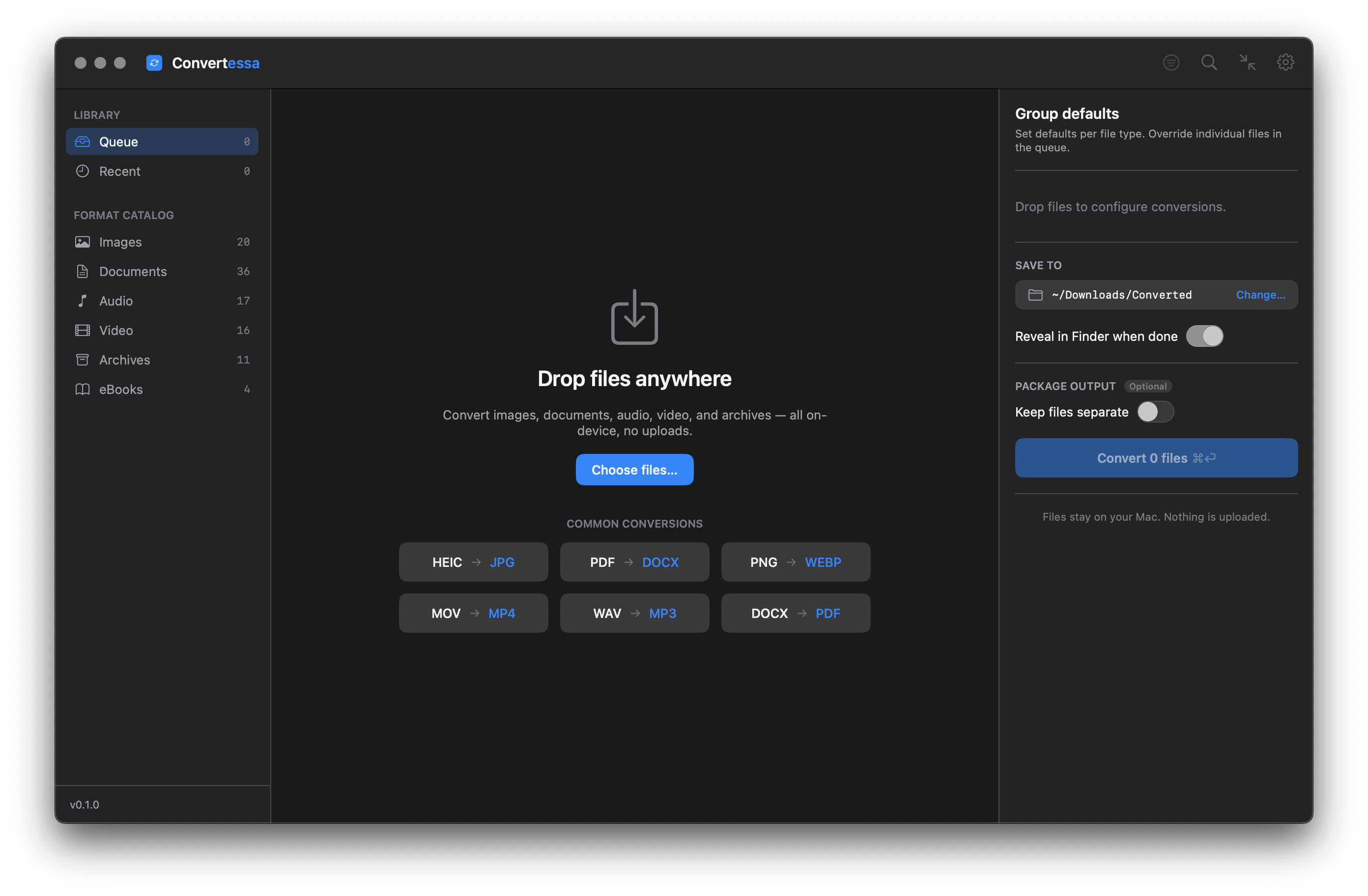
Images, audio, video, documents, archives and eBooks — all converted natively, right on your Mac.
Pick a format you have — see everything Convertessa can turn it into.
Convert hundreds of files at once with per-type group defaults and individual overrides.
First-class support for HEIC, AVIF and WebP — encode and decode, both ways. Read JPEG XL and a dozen more modern formats too.
Drop files anywhere on the window. Native, instant, and exactly what you’d expect on a Mac.
Dial in compression, resolution and bitrate. Keep originals pristine or shrink for sharing.
Never overwrite a file by accident. Convertessa appends safe suffixes automatically.
Every job is logged locally. Re-run a previous conversion or revisit recent outputs in a click.
Bundle your converted files straight into a single ZIP, TAR or 7z — packaged and ready to share the moment a job finishes.
Right-click any file in Finder and choose Convert. A Quick Action handles it on the spot — no need to open the app first.
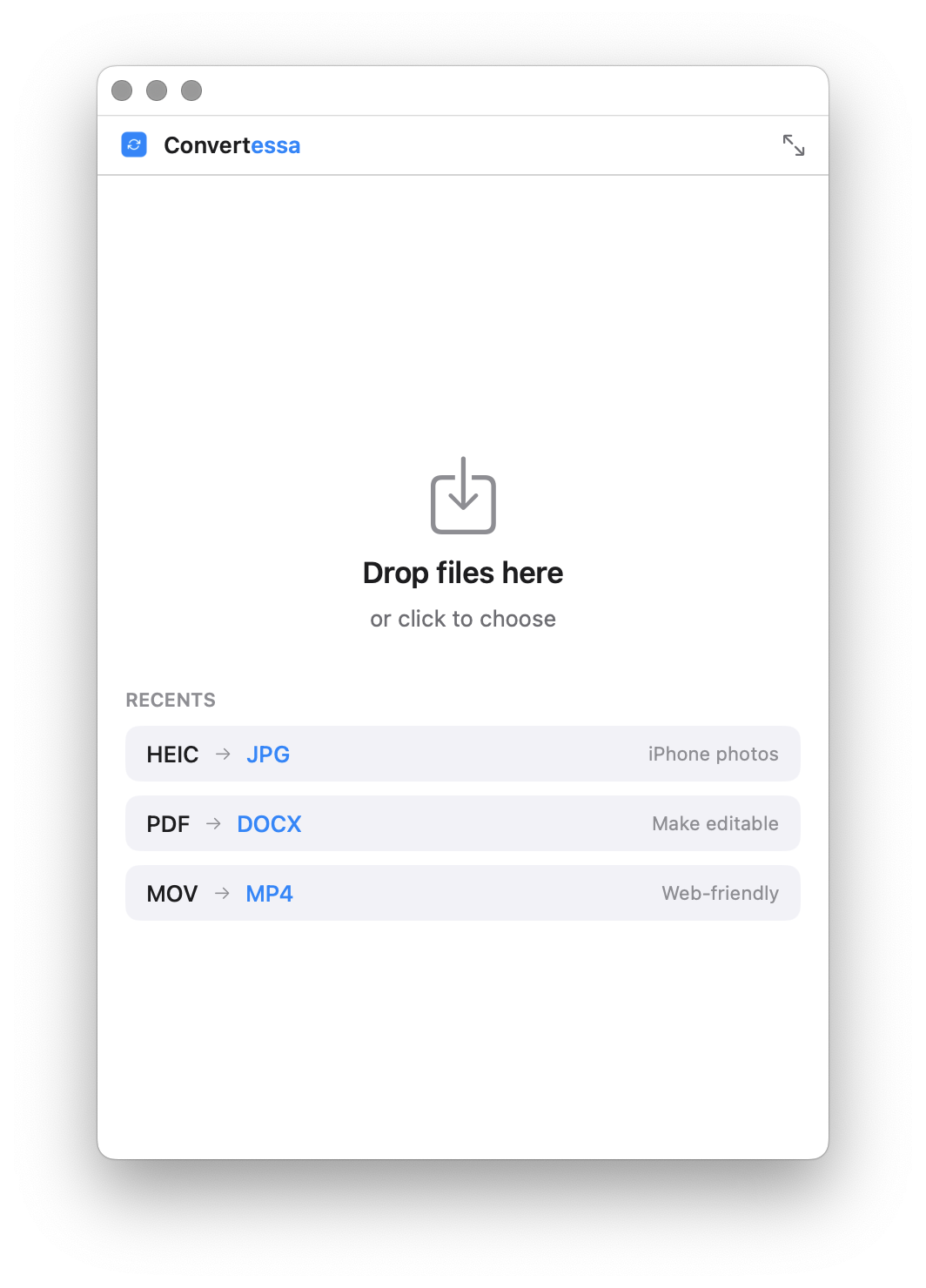
Shrink Convertessa to a tidy mini window that tucks into a corner — just a drop zone and a format picker for quick, one-off conversions.
No cloud. No account. No upload. Every conversion happens entirely on-device, using the power already in your Mac. What you convert is nobody’s business but yours.
Script conversions, wire them into your build, or batch a folder from the terminal. The same engine, no GUI required.
Read the full CLI documentation →Shrink Convertessa down to a small, focused window — drop, convert, done, with your recent conversions one click away.
macOS 14+ · Apple Silicon & Intel
New formats, new features, and fixes — every release, on the record.
Yes. Drag a folder onto Convertessa or run convertessa ~/Music/ --to opus in Terminal. Every .m4a file in the folder is queued and converted to Opus in a single pass.
Entirely. Convertessa runs locally on your Mac and never uploads your audio to any server. Your files stay on your device throughout the entire conversion process.
Opus is a lossy format, so quality determines how much audio data is kept during encoding. A higher quality setting produces larger files with more faithful reproduction of the original M4A; a lower setting produces smaller files with more compression.