
Your files stay on your Mac.

Convertessa lays your .docx out with LibreOffice and exports a PDF anyone can open without Word, on your Mac and nowhere else. Headings become bookmarks, links stay clickable, and the text stays searchable rather than turning into pictures of words. Drop a folder of drafts and each one comes back as a PDF beside it, or aim the CLI at a directory and let it work.
A .docx file contains no pages. It contains text, styles and rules, and whichever program opens it works out where each line wraps and where each page ends. Word does that with its own layout engine. Convertessa uses LibreOffice, which has its own. That is the entire reason a converted PDF can come out a line — occasionally a page — different from what was on screen, and it is worth knowing before a forty-page contract goes to a client.
Fonts are the usual culprit. Microsoft's defaults, Calibri and Cambria and now Aptos, are not part of macOS. When they are missing, LibreOffice substitutes something with similar metrics, the lines re-break by a hair, and a paragraph that ended neatly at the foot of page three spills one orphan line onto page four. Once the PDF is written the problem stops travelling: the export embeds subsets of the fonts it actually used, so the file then looks the same on every machine that opens it.
What does come through reliably is the good part: hyperlinks stay clickable, heading styles become PDF bookmarks in the sidebar, and text stays real text — selectable, searchable, copyable, not a picture of words. The quality setting applies to bitmap images you placed in the document; type and vector shapes are unaffected wherever you leave it.
Accept or reject tracked changes, refresh the table of contents, and note which fonts the document uses. LibreOffice performs the layout, so whatever is unresolved in the .docx is what gets frozen onto the page.
Drag a single file or a folder of Word documents onto the queue and choose PDF as the output. Photographs placed in the document are re-encoded during export, so set quality with those in mind.
Run it and skim the result, particularly the last page of anything long. If a break has moved, installing the document's original fonts on your Mac is the fix that puts the pagination back.
Images, audio, video, documents, archives, eBooks and fonts — all converted natively, right on your Mac.
Pick a format you have — see everything Convertessa can turn it into.
Convert hundreds of files at once with per-type group defaults and individual overrides.
First-class support for HEIC, AVIF and WebP — encode and decode, both ways. Read JPEG XL and a dozen more modern formats too.
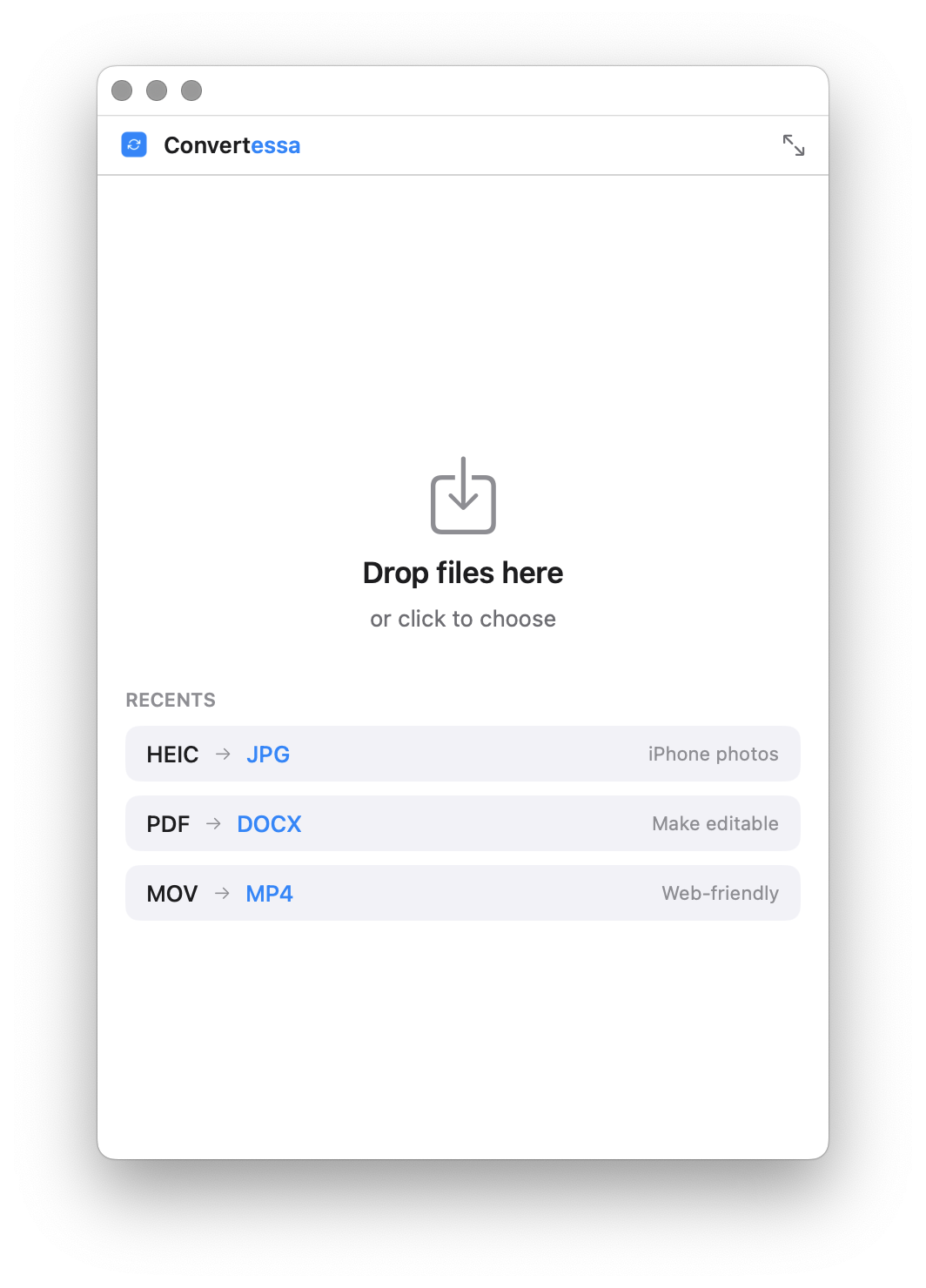
Drop files anywhere on the window. Native, instant, and exactly what you’d expect on a Mac.
Dial in compression, resolution and bitrate. Keep originals pristine or shrink for sharing.
Never overwrite a file by accident. Convertessa appends safe suffixes automatically.
Every job is logged locally. Re-run a previous conversion or revisit recent outputs in a click.
Bundle your converted files straight into a single ZIP, TAR or 7z — packaged and ready to share the moment a job finishes.
Right-click any file in Finder and choose Convert. A Quick Action handles it on the spot — no need to open the app first.
Shrink Convertessa to a tidy mini window that tucks into a corner — just a drop zone and a format picker for quick, one-off conversions.
No cloud. No account. No upload. Every conversion happens entirely on-device, using the power already in your Mac. What you convert is nobody’s business but yours.
Script conversions, wire them into your build, or batch a folder from the terminal. The same engine, no GUI required.
Read the full CLI documentation →Shrink Convertessa down to a small, focused window — drop, convert, done, with your recent conversions one click away.
macOS 14+ · Apple Silicon & Intel
New formats, new features, and fixes — every release, on the record.
Because pagination is calculated, not stored. The .docx holds content and formatting rules; the program that opens it decides where lines wrap and pages end. Word and LibreOffice use different layout engines and, more importantly, may have different fonts available, and a font a fraction wider pushes a line, which eventually pushes a page. Long documents with tight paragraph spacing are where you notice it.
It will look close, and exact if you install the fonts. Neither ships with macOS, so LibreOffice substitutes a metrically similar face — usually Carlito for Calibri and Caladea for Cambria, which were designed with matching letter widths precisely for this. Aptos, the newer Microsoft 365 default, has no such stand-in yet, so it drifts more. Installing the real fonts on your Mac removes the guesswork entirely.
Yes, if they are real heading styles. Text formatted with Heading 1, Heading 2 and so on becomes the PDF outline you see in the sidebar of Preview or Acrobat, nested to match. Text that merely looks like a heading because you made it big and bold produces nothing, since there is no structure to export. It is the strongest practical argument for using styles in the first place.
No. Content controls, check boxes and drop-downs flatten into static text and boxes that show whatever value they held at export. The result looks exactly like the form and behaves like paper: printable and signable by hand, not typeable. If people need to fill it in on screen, send them the .docx, or build the interactive fields in a dedicated PDF editor afterwards.
Yes. This is a real export, not a print-to-image, so every character in the PDF is stored as text with an embedded font. Spotlight indexes it, Preview finds words in it, and anyone can copy a paragraph out. That is the difference between a PDF made from a document and a PDF made from a scanner, which is only pictures of pages until something reads them back.
The CLI drives the same engine as the app. A single file: convertessa contract.docx --to pdf. Everything in a folder, written somewhere else so the originals stay tidy: convertessa ~/Drafts/*.docx --to pdf -o ~/Signed. It is the sensible route when a folder of monthly reports needs the same treatment every month, or when you are calling it from a script.
Yes. LibreOffice reads the legacy binary Word format as well as modern .docx, so a document from Word 97 through 2003 converts the same way. Very old files are more likely to lean on fonts nobody has any more, and the layout engines of that era were looser, so check the pagination afterwards. Pick .doc as the source format and PDF as the target and the rest is identical.