Convert Apple M4A to MP3. Offline.

Your files stay on your Mac.
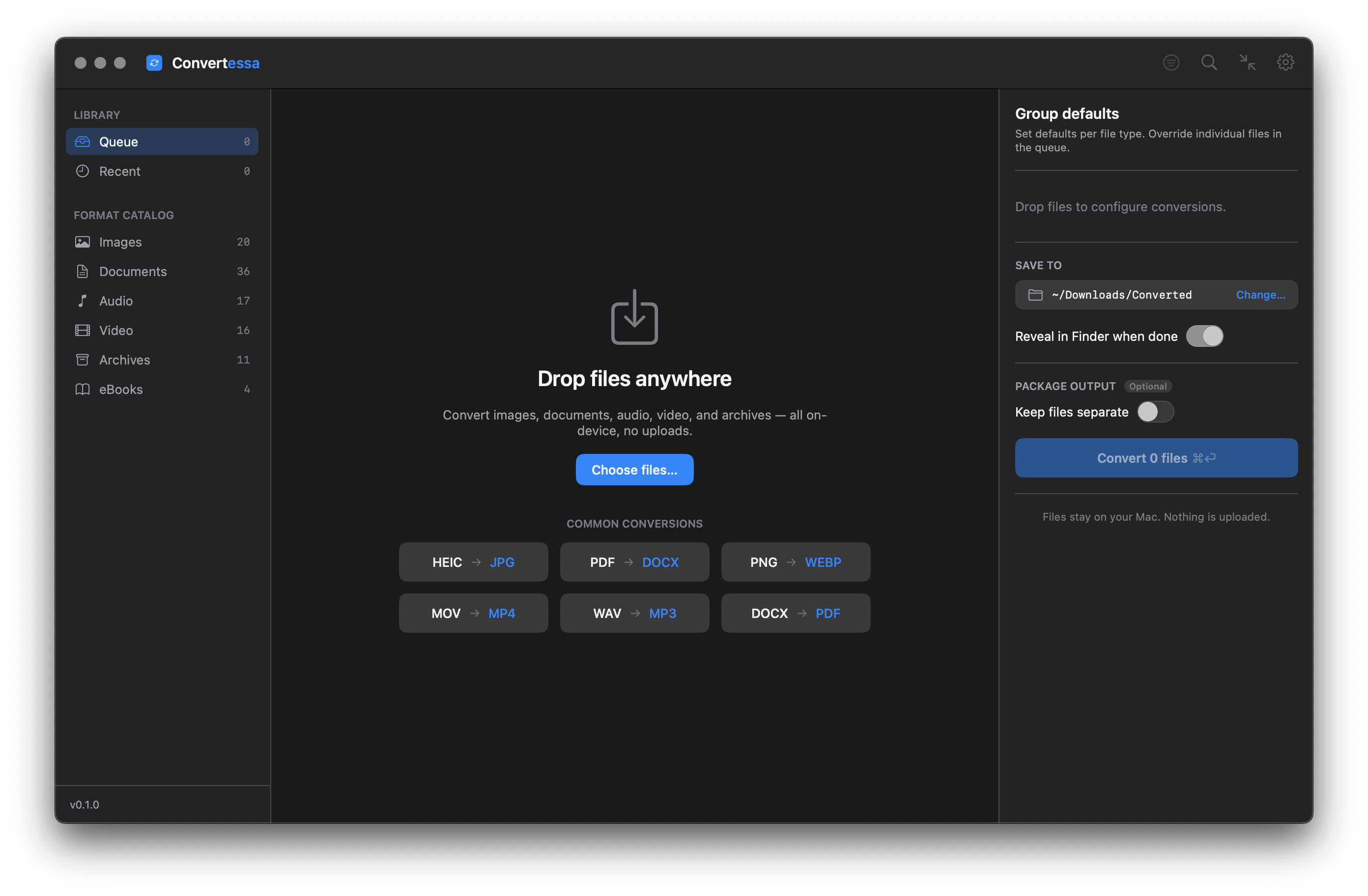
Convertessa app window showing the format catalog and drop area
What it does

Apple M4A to MP3: what changes

M4A to MP3 is a compatibility conversion: the file plays fine on Apple hardware and stalls on a car head unit, an old player or an upload form that only accepts MP3. Convertessa decodes the M4A with FFmpeg — AAC or Apple Lossless, either one — re-encodes to MP3 at the quality you pick, carries the common tags across, and never sends the audio anywhere.

Inside an M4A

Not every M4A holds the same thing

.m4a is not a codec. It is an MPEG-4 container — the same box structure as .mp4, with the video track left out — and the audio inside is one of two very different things. Usually it is AAC: lossy, efficient, what Music ripped and what Voice Memos records. Sometimes it is ALAC, Apple Lossless, a bit-exact copy of the source. Which one you have decides what the MP3 costs you.

AAC to MP3 is a second generation

Re-encoding lossy audio into a different lossy format cannot recover what the first encoder discarded, and it discards more on top. AAC and MP3 do not even share a filterbank design, so their artifacts land in different places instead of lining up. Encode at a high quality value and the difference stays inaudible in normal listening; go low and you hear it first on cymbals, applause and reverb tails. An ALAC source is the happy case: the decode is exact, so the MP3 is only one generation from the master.

What the container leaves behind

  • Tags move from MP4 atoms to ID3v2. Title, artist, album, track and disc numbers, year, genre and embedded cover art survive; Apple-specific fields such as sort names, the compilation flag and purchase records have no ID3 equivalent.
  • MP3 tops out at a 48 kHz sample rate. A 96 kHz ALAC file has to come down to fit — a real change, and one you avoid by targeting FLAC instead.
  • Multichannel audio is folded to stereo. MP3 in practice is a two-channel format.
  • FairPlay-protected .m4p purchases cannot be decoded outside Apple's own playback path. That is encryption, not a missing feature.

FFmpeg does the work here, with LAME as the MP3 encoder — the same pairing behind most command-line audio workflows, running on your own machine.

How it works

Three steps. No upload required.

1

Add the M4A files

Drag in single tracks, a Voice Memos export or a whole album folder. Both flavours of M4A go into the same queue — AAC files and Apple Lossless files are decoded by FFmpeg either way.

2

Choose MP3 and quality

Pick MP3, then set the quality. High or max is the right call for music that started life as AAC, since the encoder is already working from reduced audio; spoken word tolerates a lower value.

3

Convert and check tags

Run the batch. Each file is written as an MP3 with ID3v2 tags and cover art carried across; open one in your player to confirm the album and track numbering came through as expected.

Format catalog

From everyday files to pro media.

Images, audio, video, documents, archives, eBooks and fonts — all converted natively, right on your Mac.

Conversion explorer

What do you want to convert?

Pick a format you have — see everything Convertessa can turn it into.

conversion combinations
I have a
can be converted to
From MP4

Features

Built for real work.

Batch conversion

Convert hundreds of files at once with per-type group defaults and individual overrides.

Modern image formats

First-class support for HEIC, AVIF and WebP — encode and decode, both ways. Read JPEG XL and a dozen more modern formats too.

Drag & drop

Drop files anywhere on the window. Native, instant, and exactly what you’d expect on a Mac.

Quality control

Dial in compression, resolution and bitrate. Keep originals pristine or shrink for sharing.

Collision-safe naming

Never overwrite a file by accident. Convertessa appends safe suffixes automatically.

Conversion history

Every job is logged locally. Re-run a previous conversion or revisit recent outputs in a click.

Archive the output

Bundle your converted files straight into a single ZIP, TAR or 7z — packaged and ready to share the moment a job finishes.

Convert from Finder

Right-click any file in Finder and choose Convert. A Quick Action handles it on the spot — no need to open the app first.

Compact mode

Shrink Convertessa to a tidy mini window that tucks into a corner — just a drop zone and a format picker for quick, one-off conversions.

Your files never leave your Mac.

No cloud. No account. No upload. Every conversion happens entirely on-device, using the power already in your Mac. What you convert is nobody’s business but yours.

On-device processing Zero telemetry No file uploads
For power users

There’s a command line, too.

Script conversions, wire them into your build, or batch a folder from the terminal. The same engine, no GUI required.

Read the full CLI documentation
zsh — convertessa
# Convert a single file
$ convertessa input.m4a --to mp3
photo.mp3 · 1.2 MB · 0.4s
 
# Batch a whole folder
$ convertessa ./*.m4a --to mp3 -o ~/Exports
14 files converted · 4.1s
Made to fit

And a compact mode.

Shrink Convertessa down to a small, focused window — drop, convert, done, with your recent conversions one click away.
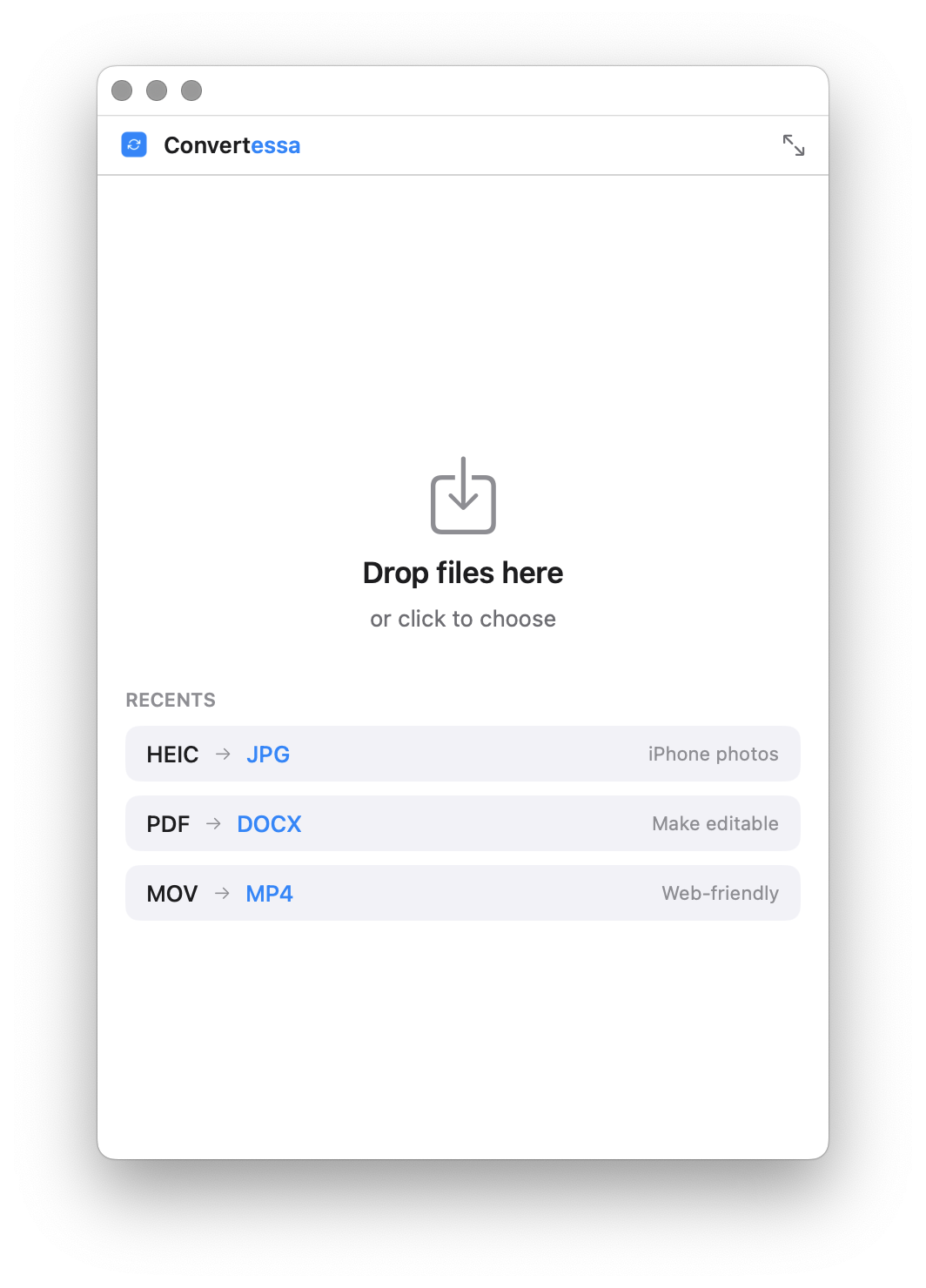
Convertessa in compact mode — a small window with a drop area and recent conversions
Pricing

One price. Yours for good.

Lifetime license
$19
One-time payment
No subscription. No renewals. Ever.
Get the app
  • 1,000+ conversion combinations
  • Lifetime future updates
  • No account required
  • Unlimited devices

macOS 14+ · Apple Silicon & Intel

Changelog

What’s shipped so far.

New formats, new features, and fixes — every release, on the record.

FAQ

Good questions.

Convertessa is a native macOS app that converts your files between formats — images, audio, video, documents, archives and eBooks — entirely on your Mac. Drop a file in, choose an output, and it’s done. No uploads, no account, no subscription.
Convertessa is an orchestrator. Under the hood it relies on best-in-class open-source engines — FFmpeg for audio & video, Pandoc for documents, libvips for images, LibreOffice for office formats, and Calibre for eBooks. It installs them for you with a click, then calls the right tool, or chain of tools, in the right order for whatever you’re converting. You get one clean native interface instead of a tangle of command-line flags. These binaries aren’t bundled with the app and are never installed without your approval — Convertessa simply calls them in a terminal session on your behalf.
Popular ones include JPEG, PNG, HEIC, WebP and AVIF; MP3, AAC, FLAC and WAV; MP4, MOV and MKV; PDF, DOCX and EPUB; ZIP, TAR and 7z — and many more. See exactly what converts to what in the conversion explorer →
Email us and we’ll add it in an upcoming release. Convertessa’s format coverage grows with what people actually need, so your request genuinely helps shape the app.
Your files? Never. Every conversion happens locally on your Mac. Your files are never uploaded, and nothing you convert is ever sent anywhere. Our Privacy Policy spells out exactly what limited data the app does store.
No analytics, no tracking, no telemetry. Your files and conversions stay entirely on your Mac — nothing you convert is ever sent anywhere. The app periodically checks for software updates in the background; like any web request, that check reveals only standard request metadata (your IP and app/OS version) to our update server — never your files, name, email, or license — and updates are always user-approved. Separately, on the website only, our purchase-confirmation page reports a completed sale to Google Ads so we can measure our own ad performance — it never runs while you’re browsing or converting, only after checkout. Our Privacy Policy spells out exactly what’s stored — and what isn’t.
Yes. Convertessa is a universal app and runs natively on Intel Macs. It requires macOS 14 or later.
Yes. It’s tuned for Apple Silicon (M-series) and runs natively — fast and energy-efficient. macOS 14 or later.
Yes — your license works on an unlimited number of your own Macs. Buy once and install it everywhere you work.
You get a genuinely useful, private, native Mac app for a single $19 payment — no subscription, ever. And your purchase directly supports a small independent developer and the app’s ongoing updates and new formats.
There’s no separate trial, but every purchase is backed by a 14-day money-back guarantee. If Convertessa isn’t right for you, contact your payment processor within 14 days to request a full refund — no questions asked. You can also email us and we’ll help route it.
Quite possibly — just email us. If you’re a student, run a non-profit, or have another good reason, reach out and we’ll sort you out.
Convertessa was built by Daler Azimov — a developer who needed a fast, private, native file converter for his own work, and decided to make the one he wished existed. Connect on LinkedIn →

Size gives it away. Apple Lossless runs several times larger than AAC for the same music — roughly 25–35 MB for a four-minute track against 6–8 MB. The Finder's Get Info panel names the codec too. From the terminal, convertessa track.m4a --to mp3 --debug prints the pipeline detail for the file. It matters because an ALAC source hands the MP3 encoder untouched audio, while an AAC source has already been through one lossy pass.

Because AAC is the more efficient codec. It was designed roughly a decade after MP3 and reaches similar perceived quality in a smaller file, so matching that quality in MP3 takes more room. Nothing has gone wrong. If size matters to you more than compatibility, the honest answer is to keep the M4A — MP3 is a compatibility target, not a smaller one.

The common ones do. FFmpeg maps MP4 metadata atoms onto ID3v2 frames, so title, artist, album, album artist, track and disc numbers, year, genre, comment and embedded artwork come across. Apple-specific fields are dropped for want of an equivalent: sort-name variants, the compilation flag as Music uses it, purchase and account information, and Apple's grouping extensions. Convert one file and inspect it in your player before running a library of a thousand.

Chapters are a container feature. In MP4 they live in a dedicated track; MP3 has no native equivalent and relies on ID3 chapter frames that plenty of players ignore. Expect the result to behave as one continuous track, with your position remembered by the player rather than the file. Note too that audiobooks usually carry the .m4b extension rather than .m4a — a different route, even though the container underneath is the same.

Anything sold since 2009 is DRM-free 256 kbps AAC in an .m4a and converts normally. Older purchases carrying the .m4p extension are wrapped in FairPlay and cannot be decoded by FFmpeg or by anything else outside Apple's playback path. Go by the extension: .m4a converts, .m4p does not, and no setting in the app changes that.

Partly. MP3 frames are fixed length, so an encoder pads the end of every file. LAME records the encoder delay and padding in a header at the start of the MP3, and players that read it stitch tracks back together seamlessly; players that ignore it insert a short silence. Live albums and beat-matched mixes are where you notice — worth testing one transition on the device you actually listen on.

For music that began as AAC, stay high: the encoder is already working from reduced audio, and squeezing it further is where artifacts turn audible. convertessa ~/Music/Album/*.m4a --to mp3 --quality high -o ~/MP3 runs the folder in one pass. Lectures, interviews and voice memos hold up comfortably at a lower value — --quality balanced is a sensible floor for speech.

Keep them. If they are Apple Lossless, they are your masters and the MP3 is a derived copy. If they are AAC, they are still one generation closer to the original than the MP3 you just made, so re-converting from them later beats converting from the MP3 again. Treat the MP3 as the copy that goes to the car, the old phone or the upload form, not as the replacement.

We’d love to hear from you. Email us and you’ll get a reply from a real person — the one who made the app.