
Your files stay on your Mac.
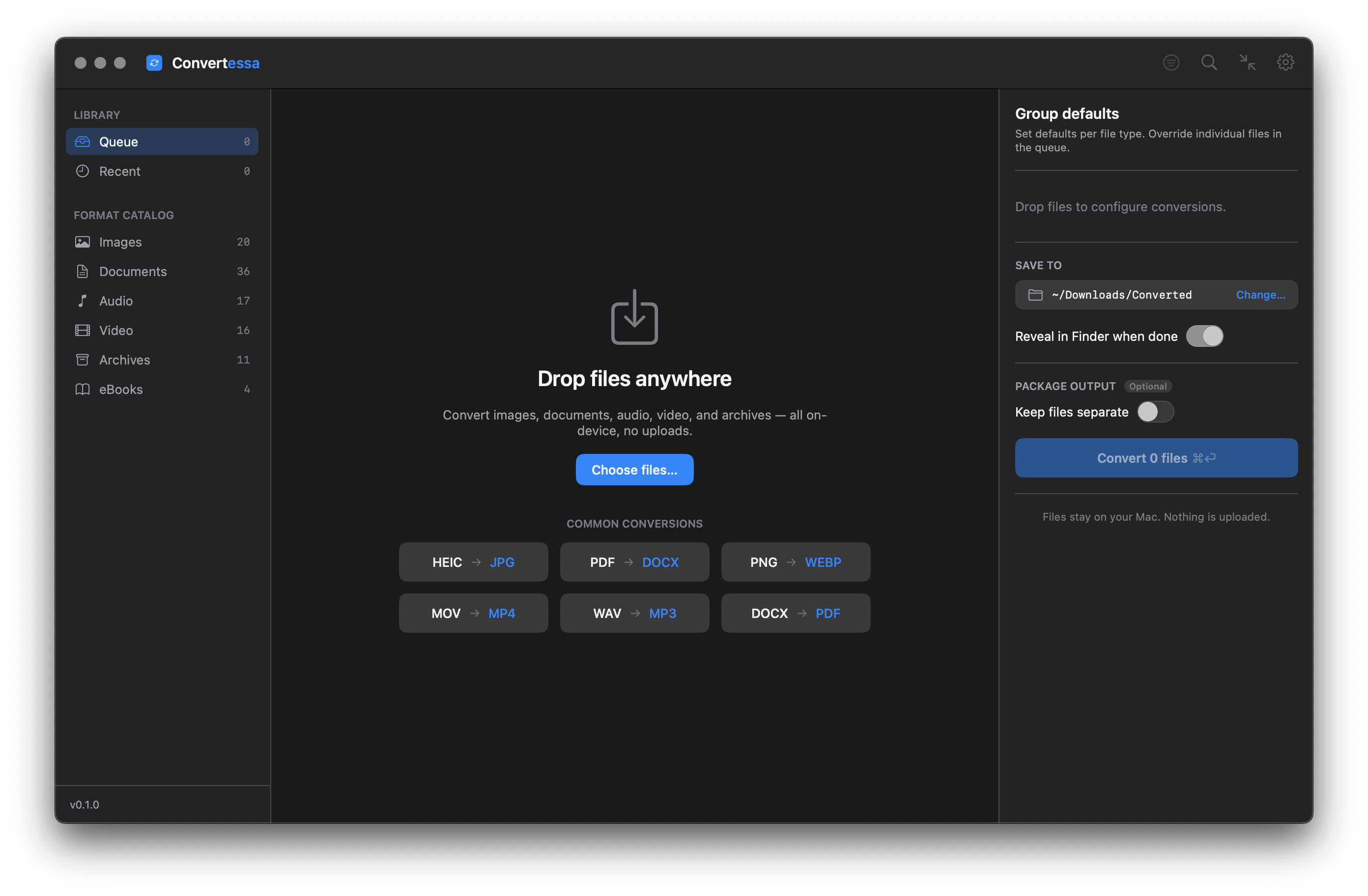
Converting Apple M4A to Ogg Vorbis decodes the AAC stream from the M4A container and re-encodes it as royalty-free Ogg Vorbis. You control the output quality before converting. Every file stays on your Mac — nothing is uploaded to any server.
Drag one file or an entire folder of M4A audio into Convertessa. Batch mode processes every file in one pass.
Choose Ogg Vorbis from the output format list. Set quality to balance file size and fidelity for your use case.
Click Convert. Convertessa re-encodes each M4A to Ogg Vorbis locally. Your files never leave the Mac.
Images, audio, video, documents, archives and eBooks — all converted natively, right on your Mac.
Pick a format you have — see everything Convertessa can turn it into.
Convert hundreds of files at once with per-type group defaults and individual overrides.
First-class support for HEIC, AVIF and WebP — encode and decode, both ways. Read JPEG XL and a dozen more modern formats too.
Drop files anywhere on the window. Native, instant, and exactly what you’d expect on a Mac.
Dial in compression, resolution and bitrate. Keep originals pristine or shrink for sharing.
Never overwrite a file by accident. Convertessa appends safe suffixes automatically.
Every job is logged locally. Re-run a previous conversion or revisit recent outputs in a click.
Bundle your converted files straight into a single ZIP, TAR or 7z — packaged and ready to share the moment a job finishes.
Right-click any file in Finder and choose Convert. A Quick Action handles it on the spot — no need to open the app first.
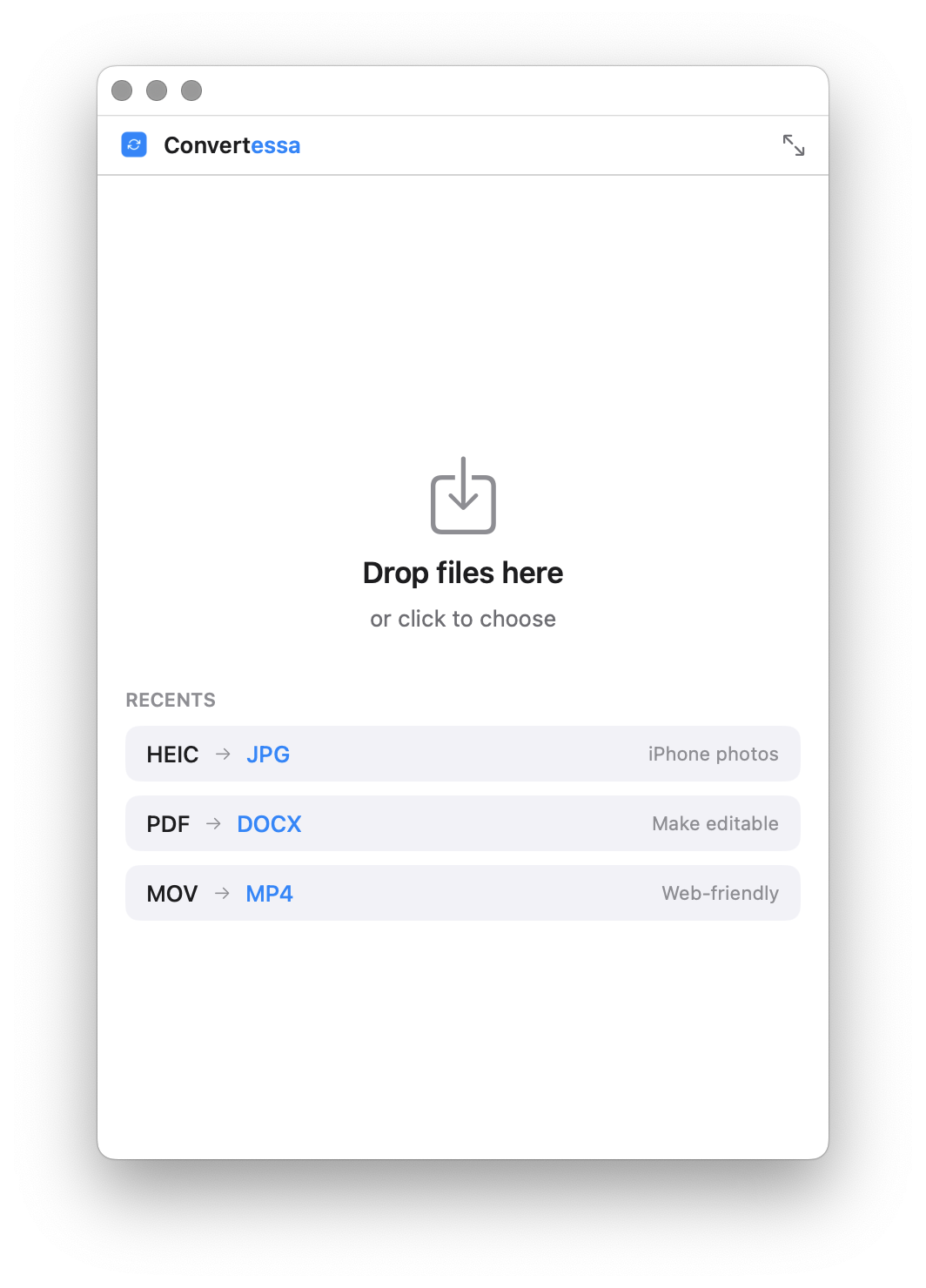
Shrink Convertessa to a tidy mini window that tucks into a corner — just a drop zone and a format picker for quick, one-off conversions.
No cloud. No account. No upload. Every conversion happens entirely on-device, using the power already in your Mac. What you convert is nobody’s business but yours.
Script conversions, wire them into your build, or batch a folder from the terminal. The same engine, no GUI required.
Read the full CLI documentation →Shrink Convertessa down to a small, focused window — drop, convert, done, with your recent conversions one click away.
macOS 14+ · Apple Silicon & Intel
New formats, new features, and fixes — every release, on the record.
Yes. Ogg Vorbis is a lossy format, so Convertessa lets you set quality before converting. A higher quality setting produces a larger file with more fidelity; a lower setting produces a smaller file.
Yes. Drop a folder onto Convertessa or use the CLI batch form (convertessa /folder --to ogg) and every M4A inside is converted in one pass.
No. Convertessa runs entirely offline. Files are read and written on your Mac and are never sent to an external server.